
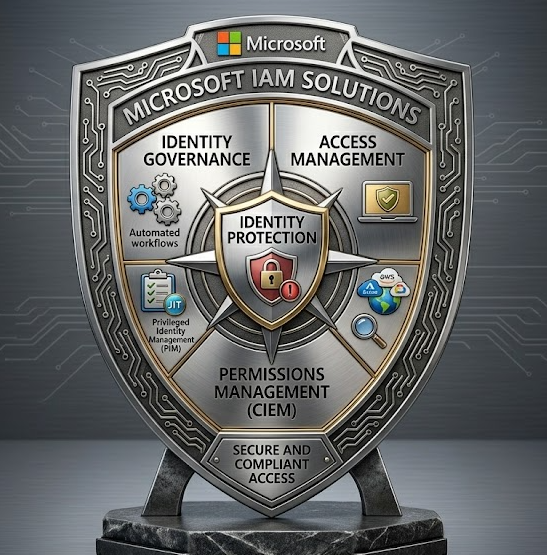
• Identity & Access Management (IAM) Controls – The Stryker Incident

    Following the recent high profile cyber-attack on Stryker Medical by the Iran-based Cyber Group Handala, I think it’s fitting to discuss threat prevention methods even for a Global Admin (GA) Account which appears to have been compromised in this case.

    Yes, the GA account can circumvent some or part of these measures, but security isn’t a ‘one size fits all’ solution. Security is an accumulation of measures, a layered defense that makes it extremely difficult for an attacker to circumvent collectively. As it’s still early days and we don’t have the full details, let’s discuss Microsoft’s 365 Identity & Access Security features that would have stopped or slowed down the attacker.

    👉🏻Multi-Factor Authentication (MFA)🫆

    Authentication methods policies

    Not all MFA methods are secure, a man-in-the-middle (MitM) attack can obtain authentication methods like push notifications with Microsoft Authenticator or SMS authentication. Phishing resistant methods like FIDO2 keys or passkeys using Windows Hello should be the default authentication method used by organisations. Microsoft have mandated the use of MFA for privileged accounts, so it’s likely some form of MitM attack occurred here.

    👉🏻Multi-Admin Approval (MAA) ✔️

    Multi Admin Approval (MAA)

    A secondary admin is required to approve potentially destructive actions on a Microsoft 365 Tenant. Organisations can configure an ‘access policy’ which cover different policy types such a device actions (delete, retire, wipe), roles (create, edit, assign, delete) and more. Circumvention can be difficult here when the ‘Roles’ access policy type is implemented. In the Stryker incident, Graph API calls to wipe devices would need to be approved for each device action type. This would have certainly triggered an alert!

    👉🏻Privileged Identity Management (PIM) 🪪

    Microsoft Entra Roles

    PIM is your just-in-time (JIT) access feature configured in Microsoft Intune for privileged roles. Here you can assign roles that require activation when needed and expire after a set amount of time. You can set the activation to require a business justification and an approver to verify, like MAA. It’s evident that Stryker didn’t use PIM or make use of the approver function.

    👉🏻Conditional Access – Named Locations 🌎

    Named Locations

    A mistake I see consistently is the configuration of named locations, named locations are used to ‘tag’ an identity’s location using two methods, IP addresses and GPS coordinates. Yes, an IP Address can be spoofed quite easily but determining a location by GPS coordinates is more difficult to circumvent because the Microsoft Authenticator app requests the location services from the device the end user is signing in with.

    Organizations use named locations to provide access based on a trusted country, but rarely a policy blocking certain countries which follows the zero-trust methodology. In this case, Stryker could have created a ‘Blocked Countries’ list, selected all, de-selected the counties their IT Teams operate in and created a CA policy to block access to all admin portals.  

    👉🏻Risk-Based Conditional Access ⚠️

    Block Risky Userts

    Risky users and sign-ins are detected using Microsoft’s Machine learning and Threat Intelligence engine, the engine is fed information from many data points to identify threat actors and patterns, called signals. Microsoft uses these signals to designate a risk score to an identity (Low, Medium, High). With the correct licensing for Identity Protection, organisations can utilise Microsoft’s risk scores to block access to a tenant using a sign-in risk or user risk policy. These policies are basic; there’s more flexibility using Risk-based Conditional Access policies. I’ll delve into these in a future blog.

    👉🏻Identity Governance – Access Reviews 📋

    Identity Governance

    Access Reviews don’t have to be manual, as part of the Microsoft Entra Identify Governance suite, ‘Access reviews’ can be conducted automatically and targeted at groups and applications periodically. Say for instance, there’s a ‘SysAdmin’ security group containing accounts with the Global Admin role. You can configure Access Reviews so that the ‘Reviewer’ must act on an accounts access to the ‘SysAdmin’ group otherwise block actions can be automated if the reviewer ignores the report. This prompts a reviewer to conduct an access review, drill into the account and justify its access. Microsoft Entra Access reviews are not a silver bullet; however, they can be used to find the breadcrumbs necessary to identify a malicious actor/entity.

    👉🏻Final Thoughts 💭

    There is a cost to use the above features, but with good practices organisations don’t need to break the bank if they follow the principle of least privilege and regularly reviewed accounts. If a GA is required, then the authentication methods should be cycled and sign-in logs monitored daily. Stryker failed to do the basics, and it cost them greatly.

    To learn more, visit: What is Microsoft Entra ID Protection? – Microsoft Entra ID Protection | Microsoft Learn

  • Baseline Security Mode (BSM)

    At Microsoft Ignite 2025 in November, Microsoft announced Baseline Security Mode (BSM) is generally available and will begin rolling it out to Microsoft 365 Tenants globally. 

    What is BSM?

    BSM is Microsoft’s recommended security hardening protections found under the org settings in the admin center.  BSM is divided into two sections ‘Default Policies’, which can be applied automatically (by selecting a checkbox) and usually have little impact, and ‘Measured Policies’ which as the name suggests, requires assessment before enabling.  

    Org Settings
    Pre Setting BSM

    Lucky for us, for ‘Measured Policies’ Microsoft does all the heavy lifting by generating reports, making recommendations, identifying the risk and measuring the impact before applying the policy/setting, like report-only mode for conditional access policies.   

    Generating a report usually changes the recommendation status to ‘In review’. I say ‘usually’ because the layout and functionality of the GUI have changed since I first reviewed the Baseline Security Mode two weeks ago on my test tenant, so this is likely to change again in the future.

    BSM Dashboard

    Let’s look at ‘Block new password credentials in apps’ which is currently ‘At Risk’.  We can check the recommendation and click the button at the bottom of the image below to apply the setting or download a detailed report to measure the risk. Clicking ‘Customize this policy’ brings you directly to the setting in the Entra ID portal.  

    Block new password credentials in apps

    Looking at the ‘Block legacy authentication’ which is currently ‘In Review’ status, we can see that there aren’t any ‘Sign-in requests authenticating with legacy auth’. Phew – we’re safe! 

    Block Legacy Auth

    Similarly, we can check the box and save the policy to apply the recommendation, or we can click ‘customize this policy’ to take us directly to the setting/policy section in the Entra ID portal.  

    As always, I like to finish off my blog posts with my opinion – BSM is a much-anticipated feature I’ve been wanting from Microsoft for what feels like a lifetime. I’ve been looking for a mechanism to measure a tenants security posture without the need for manual checklists or external tools.

    Currently BSM is only targeting Microsoft 365 apps, SharePoint/OneDrive, Teams, Exchange Online and Entra. I’ve heard through the grapevine that BSM will be expanding to Intune. Hopefully as a feature of security baselines because there’s a lack of impact reports, yes folks will argue that you should test before applying the baselines but even then there’s nearly always some outlier that wasn’t part of your test group that needs remedying.

    Anyways, big thumbs up for Microsoft on this, BSM is a cool feature that I will be using often when reviewing the security posture of clients tenants. Like Secure Score, BSM should be reviewed regularly as more hardening settings become available.

    If you enjoyed my blog, please subscribe to get emailed when I release more.

    N.B – Just as I’m ready to publish this post 😁

    Recommended setting automation

  • How to enable Synced Passkeys in Entra?

    Microsoft has released Synced Passkeys for public-preview, and I’m going to show you how to configure it, but first we need to understand what a passkey is? A passkey is a password-less identification token provided by an Identify provider (IdP), generally in the form of biometrics and a backup pin. In Microsoft Entra, the passkey is device bound, meaning a new passkey is required for accessing Microsoft services on different devices. A Synced Passkey solves this problem by storing the key in the cloud with your Microsoft account, essentially becoming identity bound.  

    Step 1: Opt-in to public preview 

    First you need to opt-in to public preview by clicking the hyperlink in the banner under Passkey (FIDO2) settings.  
     
    Open https://entra.microsoft.com/ – under Entra ID in the left nav pane, select Authentication methods > Under Manage, select Policies > under method, select Passkey (FIDO2) 

    Entra Passkey (FIDO2) Settings

    Step 2: Edit the default passkey profile 

    If you don’t have passkeys enabled on your tenant, then you will be prompted to edit the default passkey profile. Select Edit default passkey profile 

    Warning Banner

    For now, select Enforce attestation which will auto select Device-bound as the target type and hit save. We will configure synced passkeys on a different profile.

    Passkey Profile

    Step 3: Enable Passkeys (If not already enabled) 

    Under Passkey (FIDO2) settings, Toggle the enable button to On and hit save. 

    Enable Passkey

    Step 4: Create a synced profile 

    Select the Configure tab and then select, add profile (preview). Fill in the profile settings and then hit save.

    Configure Profile

    Notice that enforce attestation is not selected; this setting is not compatible with synced passkeys because synced passkeys don’t require the authenticity verified from a hardware authenticator, as an example. You can ignore the warning banner at the bottom of the above image which appears when enforce attestation is not enabled.  

    The target specific AAGUIDs setting is optional; you can use this setting to allow or block other passkey/IdP providers like OKTA or Google. Uncheck this option; it’s not required for this tutorial.  

    Step 5: Target the profile 

    The final step in Entra is to target the sync profile to a group of users. In this example, I target helpdesk agents and added my account into that group.  

    Add group to profile
    Add sync profile to group

    Step 6: Add passkey as a sign-in method 

    Browse to My Sign-Ins | Security Info | Microsoft.com and click add sign-in method. Select Passkey and go through the various options available to you. In my case, I choose to create a passkey using a different device so I can use biometrics from my android phone rather than the device I’m currently using.  

    My Account, select passkey
    Create a passkey
    Change device to save the passkey

    Step 7: Enjoy 
    In a modern workplace where there’s a lot of hotdesking, shared computers on a warehouse floor or you’re a techie like me who has too many gadgets, Synced Passkeys is a game changer.   

    If you enjoyed my blog, please subscribe to get emailed when I release more.

  • Autopilot Deployment Modes – Opinion Piece

    Autopilot is Microsoft’s ‘zero-touch’ endpoint deployment tool for Windows 10/11 and HoloLens devices; I’m not going to delve into what Autopilot does, you’ve found my blog, so I’ll assume you have experience with Autopilot or at least know what it does. If you want to know more, please follow the link: Overview of Windows Autopilot | Microsoft Learn 

    There are three ‘common’ Autopilot provisioning modes, User-driven deployment mode, Self-deploying mode and pre-provisioned deployment mode, which is also called the ‘white glove experience’. Before choosing a deployment mode, we must first understand the environment, which in most cases is a hybrid environment (On-prem AD with group policies applied locally). A hybrid environment dictates the deployment mode as Microsoft doesn’t recommend the Pre-provisioned deployment mode for new devices that you want to hybrid join to a domain. This doesn’t mean you can’t; you can with a caveat, the caveat is additional complexity, and you should expect technical issues to arise.  

    Self-deploying mode  

    Does what it says on the tin, primarily used for Kiosk devices with no primary user assignment. My opinion, it’s not utilized much because the service desk or helpdesk who provision devices tend to stick to one deployment method out of convenience. The self-deploying mode does not hybrid join a device therefore an MDM solution is required to manage it.  

    Pre-provisioned deployment mode (White Glove) 

    This mode is when the device is partially enrolled with device context apps installed first; domain joined then packaged by IT and sent to the end-user. The end-user then finishes the enrollment process by signing into the device with their credentials. At this point, user-context apps and policies are applied.  

    I call this mode the ‘Off Branch User-Driven Deployment Mode’ because this deployment mode won’t work without the User-driven deployment mode configured correctly. I know, it’s confusing, right? I recently deployed Autopilot for a large Government organization, and it was impossible to explain this without illustrating it in a process flow diagram.   

    Green arrows = Pre-provisioned deployment mode 
    Red arrows = User-driven deployment mode   

    User-driven deployment mode 

    I intentionally left the User-driven mode to the end because, well, hear me out. *Deep Breath* ‘Employers don’t want their non-IT employees driving the Autopilot deployment!’ When speaking with clients, they want to keep everything as it was before but speed up the device provisioning process for the IT Team. IT do all the work in the background and hand over the device to the end-user; the end-user signs in with their credentials and away they go. Yes, there are use cases like when an employee is fully remote, but even then, employers want the device configured, domain joined, checked over and then shipped to the employee. Employers don’t want their employees clicking through the enrolment status page (ESP), they want them to simply sign into their device like everyone else. In my experience, the Pre-provision deployment mode (white glove experience) is generally used when there’s a delay in the employee onboarding process or there’s a surplus of devices in stock that the IT Team want to partially provision before a user account is assigned to the device.  

    My Opinion 

    *Deep Breath* ‘Remove the Pre-provisioned deployment mode’. This mode is only necessary when there’s no Intune licensed user assigned to the device. IT Teams are already using their own accounts to complete the Autopilot user-driven deployment process, because it’s convenient for them. When this occurs the IT Admin changes the primary user and management name on the device properties page in Intune.

     To simplify this process, Microsoft could introduce an Autopilot Deployment Manager like they introduced the Intune Device Enrolment Manager (DEM) to solve enrolment difficulties for unlicensed users/devices.  

  • My First Blog Post

    Hi everyone and welcome to my website and my first blog post. I’m starting a blog to share my knowledge with like-minded IT professionals in the Microsoft community and further afield.

    What content to expect?

    I intend to write about modern workplace technologies, Intune, Copilot, Azure, Power Automate and all-encompassing technologies in the Microsoft 365 space. I’m passionate about Intune, Copilot and automation, so more on these topics.

    Are you tired of paragraphs upon paragraphs of introductions to subjects you’re familiar with?! I am too, so I hope you enjoy my, zero fluff, to the point, content.

    Please subscribe to stay notified when I next release a blog.